
Are you wondering what the best thumbnail makers are?
Do you want to create attractive and professional thumbnails and banners for your YouTube channel or website but don’t know where to start?
Well, your search ends here!
We have rounded up and reviewed the best thumbnail and banner makers to help you choose the right one for your needs.
These software are easy to use and come with tutorials, so even if you are a beginner, you will be able to create custom thumbnails and banners in no time.
So, without further ado, let’s get started with!
Here are the best thumbnail and banner makers reviewed.

1. Canva
Canva is a user-friendly graphic design tool that is perfect for creating professional YouTube thumbnails.
With over 1 million templates and tools available, all with varying levels of complexity, you can create a thumbnail that is perfect for your channel and your video.
Canva is a great choice for users who want an easy-to-use design tool that produces high-quality results.
It’s also one of the most affordable options, with plans starting at just $9.95 per month.
Pros
- A strong advantage that Canva has is that they offer a wide variety of templates for free.
- This is helpful, especially for new YouTubers who are still trying to find their style. With over a hundred templates to choose from, you’re sure to find one that suits your taste. If not, you can always create your own custom template.
- Canva also offers a wide range of tools and resources that you can use to create your thumbnail. For example, they have a library of icons, images, and illustrations that you can use for free. You can also upload your own images if you want to.
- Editing in Canva is very user-friendly and easy to use. Even if you don’t have any experience with design, you’ll be able to figure it out quickly. There are also lots of tutorials on the Canva website (and YouTube) if you need some help getting started.

Cons
While Canva is a great tool for creating professional looking designs, there are some downsides to using the platform.
- You can only use a certain amount of templates for free, so if you want more, you will have to pay. This can be a deal breaker for some users.
- While Canva offers a decent range of templates and tools, it can be challenging to find exactly what you’re looking for.
- It can be tricky to position certain elements exactly the way you want. This can become frustrating if you’re trying to do this on a regular basis.
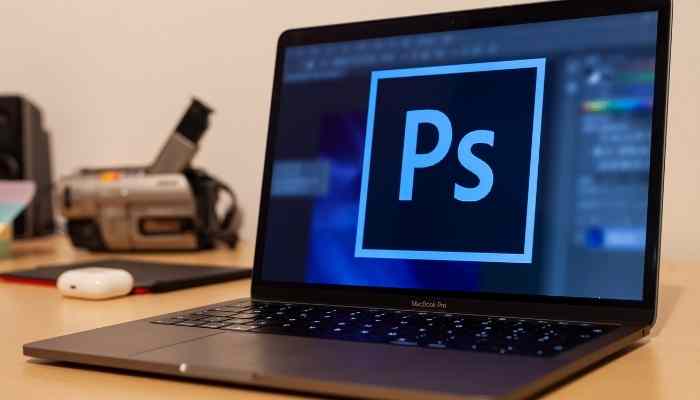
2. Adobe Photoshop
Adobe Photoshop is an industry leader when it comes to photo editing and design.
It is a fantastic choice for users who want a more advanced design tool.
It’s very powerful, but mastering it takes practice.
Pros
- With Photoshop, you can create stunning graphics and photos. It offers a wide variety of features and is available for both Windows and Mac.
- Photoshop offers users a wide variety of tools to manipulate photos to achieve a certain look or effect. One of the most popular is the clone stamp tool, which allows users to copy and paste pixels from one area of an image to another.
- Users can also create animations, logos, illustrations, and images for the web using Photoshop.
Cons
There are several drawbacks to using Adobe Photoshop to make your thumbnails.
- It can be expensive to purchase the software outright. You can subscribe to Adobe Creative Cloud for access to Photoshop, but that can also add up over time.
- Photoshop is a fairly complex program with a steep learning curve. If you’re not familiar with graphic design or photo editing, it can be difficult to figure out how to use all the features.
- Photoshop is not specifically designed for creating YouTube thumbnails, so it might not have all the tools and features you need.

3. PicMonkey
PicMonkey is another excellent online tool that helps you create stunning visuals with ease.
It is a great choice for anyone looking for an easy-to-use online thumbnail and banner maker.
The wide range of features and templates available make it a great all-rounder, and the results can be very impressive.

Pros
PicMonkey has a lot of great features that make it one of the best thumbnail makers out there.
- It’s very easy to use and has a user-friendly interface. You can easily find all the tools you need, and there’s a variety of templates to choose from.
- You can also use PicMonkey to edit existing photos, and the results can be quite impressive.
- In addition, PicMonkey offers a wide range of customization options, so you can really make your thumbnail stand out.
Cons

- The biggest con to using PicMonkey is that it’s a paid service. While it does offer a free trial, you’ll eventually have to sign up for one of its paid plans if you want to keep using it. The cheapest paid plan starts at $7.99/mo.
- Another con is that PicMonkey can be a bit overwhelming to use at first. It has a lot of features and editing options, which can be great once you get the hang of it, but it can also be a bit overwhelming and confusing if you’re not used to using graphic design software.
- PicMonkey isn’t available as a downloadable program like some of the other thumbnail makers on this list. This means that you have to be connected to the internet in order to use it, which can be inconvenient if you don’t have a reliable internet connection or if you want to work offline.
4. Snappa
With Snappa, you can create professional looking thumbnails for your YouTube videos in just a few clicks.
Snappa isn’t quite as feature-rich as some of the other programs on this list, but for a simple thumbnail or banner maker, it’s a great choice.

Pros
- User-friendly interface: The intuitive design makes it easy for non-designers to create graphic designs and covers for their social media channels.
- Built-in templates and photos: Snappa gives you access to a wide range of built-in templates and photos that you can use in your designs, which is particularly useful if you’re not a trained designer.
- Drag-and-drop editor: The drag-and-drop editor makes it very easy to create designs, even if you don’t have any prior design experience.
Cons
As great as Snappa is, it’s not perfect.
Here are the 3 biggest cons of using Snappa to create your YouTube thumbnails.
- The monthly price is a little high: At $15/month (or $10/month if you pay annually), Snappa isn’t the cheapest option out there. If you’re on a tight budget, you might want to consider one of the other options on this list.
- Limited customization options for some templates: While most of the templates in Snappa allow you to customize every aspect of the design, a few of them are locked down and only allow you to change the text and images. This can be frustrating if you want to change something like the color scheme or font style but can’t due to the locked template.
5. Fotor
Fotor offers both free and paid plans.
The free plan includes basic features, while the paid plan unlocks more advanced features.
With its simple interface and easy-to-use tools, you can create stunning YouTube thumbnails with ease.

Pros
- Fotor is simple enough for anyone to use but still has plenty of features for those who want more control over their thumbnail designs.
- You can choose from a wide range of templates or create your own custom thumbnail. The wide range of tools and features allows you to create professional looking thumbnails.
- Fotor uses high quality images, so you don’t have to worry about your thumbnail looking blurry or pixelated.
Cons
As with any tool, there are some drawbacks to using Fotor.
- It’s a cloud-based app, which means you need an internet connection to use it. This can be an issue if you’re traveling or in an area with a poor internet connection.
- Fotor doesn’t have as many features as some of the other thumbnail makers on this list. This means that if you’re looking for something very specific, you might not find it in Fotor.
- Fotor is a paid app, which means you’ll have to shell out some cash to use it. There is a free trial available, but after that, you’ll need to pay $8.99/month or $39.99/year to keep using the app.
6. GIMP
GIMP is a widely used open-source image editor that runs on all major operating systems, including Linux, OS X, and Microsoft Windows.
It offers a wide variety of features and can be used for tasks such as photo retouching, image composition, and image authoring.
It’s easy to use and has a large community of users which makes finding help and support easily if you need it.

It has many of the same features as Photoshop but can be tricky to use if you’re not familiar with graphic design software.
However, if you’re willing to put in the time to learn GIMP, it can be a great way to create custom thumbnails without spending any money on software.
Best Thumbnail Makers - A Summary:
You can easily create stunning banners and thumbnails using these software.
All you have to do is pick your favorite software, create an account, and get started.
We hope this article has helped you narrow down your choices.
Our personal favourite is Canva.
What’s more, it has the best images, is easy to use and a good price.
If you have any questions or want more information about a specific product, please let me know in the comments below.
I’d love to help!
Thanks for reading!